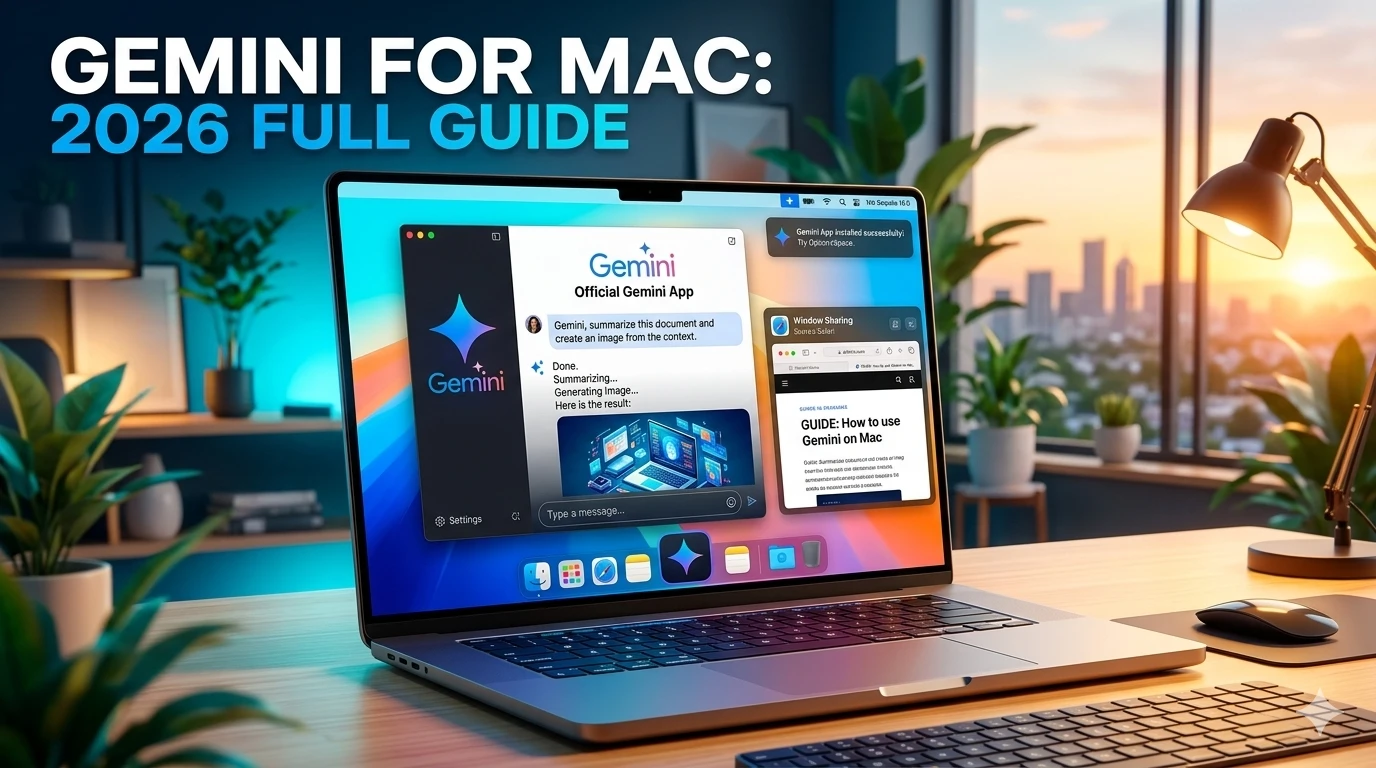
For a long time, Mac users had to keep a browser tab pinned just to talk to Google’s AI. That changed on April 15, 2026. Google finally launched a native Gemini app built specifically for macOS. It isn’t just a website in a wrapper; it is a fast, powerful tool that lives right on your desktop.
If you want to spend less time clicking between tabs and more time getting things done, this guide is for you. We will walk through the setup, the hidden shortcuts, and how to use the new window-sharing features to change how you work.
Why the Native Mac App Changes Everything
Using Gemini in a browser feels like a separate task. You have to leave your document, go to the web, and paste your text. The native Mac app removes that friction.
By living in your menu bar and responding to system-wide shortcuts, Gemini becomes a “micro-utility.” You can call it up to rewrite an email, summarize a PDF you’re looking at, or generate an image without ever leaving your main workspace.

System Requirements: Is Your Mac Ready?
Before you head to the download page, make sure your hardware can handle the latest AI models. The 2026 version of Gemini is designed to work with Apple’s native architecture.
- Operating System: macOS Sequoia (15.0) or later.
- Processor: Optimized for Apple Silicon (M1, M2, M3, and the nw M4 chips).
- Memory: 8GB RAM minimum (16GB is better for “Power” usage like video generation).
- Storage: At least 200MB of free space.
Note: While Intel-based Macs can run the app via Rosetta 2, you might see slower response times during heavy creative tasks.
Step-by-Step: How to Install Gemini on Mac
There are three main ways to get the app on your machine. Choose the one that fits your style.

1. The Official Website (Easiest Method)
- Visit gemini.google/mac in your browser.
- Click the Download for Mac button.
- Open the .dmg file once it finishes downloading.
- Drag the Gemini icon into your Applications folder.
- Double-click the app to sign in with your Google account.
2. The Mac App Store
If you prefer managing updates through Apple, search for “Google Gemini” in the Mac App Store. Click Get, and the app will install automatically into your Launchpad.
3. For Developers (Terminal Install)
If you like using the command line, you can install the Gemini CLI. Open your Terminal and type:

brew install gemini-cli
This gives you a lightweight version of the AI directly in your coding environment.
Mastering the “Pop-In” Workflow: Keyboard Shortcuts
The real power of the Mac app lies in its speed. You don’t need to find the icon in your Dock every time you have a question.
- Option + Space: This opens the Mini Chat. Use this for quick questions, like “What is the synonym for ‘meticulous’?” or “Convert 50 USD to PKR.”
- Option + Shift + Space: This opens the Full Chat experience. This is where you go for long-form writing, deep research, or coding help.
You can change these shortcuts in the app settings if they clash with other tools like Raycast or Spotlight.
The Game Changer: Window Sharing for Context
One of the biggest frustrations with AI is the “copy-paste dance.” You have a chart in Excel or a bug in your code, and you have to manually copy it over.
The Gemini Mac app solves this with Window Sharing.
How to use it:
- Open the Gemini app.
- Click the Add files and tools icon (the plus sign).
- Select Share Window.
- Choose the specific app window you are working in (like Chrome, VS Code, or Notes).
- Ask your question. For example: “Look at this spreadsheet and tell me which month had the lowest growth.”
Because the AI “sees” what you see, it provides answers that are actually relevant to your current task.
Creative Power: Nano Banana 2 and Veo
The 2026 Mac app isn’t just for text. It includes Google’s latest creative suite built right in.
Nano Banana 2 (Image Generation)
This is the new default for image creation. It is lightning-fast and handles text inside images perfectly. If you need a featured image for a blog post with a specific title, just ask:
”Create a 1280×720 3D graphic of a Mac computer with the text ‘Gemini 2026’ on the screen.”
Veo (Video Generation)
Need a quick 5-second B-roll clip for a social media post? You can now generate high-fidelity video directly from the “More Tools” menu in the Mac app. It even generates the background audio to match.
Building a Faster, Smarter Content Workflow
As a content creator or professional, you can use the Gemini Mac app to scale your work without losing quality. Here is a sample workflow:
- Research: Use the Option + Space shortcut to pull facts from Google Search while you write.
- Contextual Editing: Share your Word or Google Doc window and ask Gemini to “Check this for tone consistency.”
- Visuals: While your text is finishing, use the “Create Image” tool to generate a unique thumbnail.
- Formatting: Use the “Personal Intelligence” feature to pull data from your Gmail or Drive to populate a table.
Gemini vs. ChatGPT: The Mac App Battle
While both tools are excellent, they serve different needs in 2026.
| Feature | Google Gemini (Mac) | ChatGPT (Mac) |
|---|---|---|
| Context Window | Up to 2 Million tokens | Up to 1 Million tokens |
| Ecosystem | Direct Google Workspace links | Microsoft/Third-party plugins |
| Speed | Native Swift (Very Fast) | High performance |
| Creative Tools | Nano Banana 2 & Veo | DALL-E 3 & Sora |
| Best For | Research & Google Users | Creative Writing & Logic |
Scaling Content Without Sacrificing Quality
The trap most people fall into is letting the AI do all the work. To stay safe from Google’s spam filters and helpful content updates, use Gemini as a collaborator, not a replacement.
- Human Touch: Always edit the output. Gemini provides the skeleton; you provide the soul.
- Verify Facts: Even in 2026, AI can hallucinate. Use the “Double Check” button to ground your responses in real Google Search results.
- Stay Original: Use the “Deep Research” mode to find angles that other articles aren’t covering.
Troubleshooting Common Issues
1. App won’t open on my Mac.
Ensure you are on macOS Sequoia. Earlier versions like Sonoma or Ventura do not support the native 2026 features.
2. Shortcut isn’t working.
Go to System Settings > Privacy & Security > Accessibility and make sure Gemini has permission to monitor your keyboard.
3. “Window Sharing” is greyed out.
You must grant “Screen Recording” permissions in your Mac settings for the app to see other windows.
Frequently Asked Questions (FAQs)
Is the Gemini Mac app free?
Yes. The core app is free to download and use. However, advanced models like “Gemini Ultra” or higher limits for “Veo” video generation require an AI Premium subscription.
Does the app work offline?
No. You need a stable internet connection because the AI processing happens on Google’s powerful servers, not just your local hardware.
Can I use the same account on my iPhone?
Yes. Your chat history, “memory” preferences, and files sync perfectly between the Mac app, the iOS app, and the web version.
Final Thoughts
The official Gemini app for Mac is more than just a new way to chat. It is a bridge between your ideas and your digital workspace. By mastering the shortcuts and the window-sharing tools, you can cut out hours of manual work every week.
Download it today, set up your Option + Space shortcut, and see how much faster your workflow becomes.